Front-end
Table of contents
The Cross-Property Search front-end allows you to easily search across your JWP properties without needing to implement the API manually.
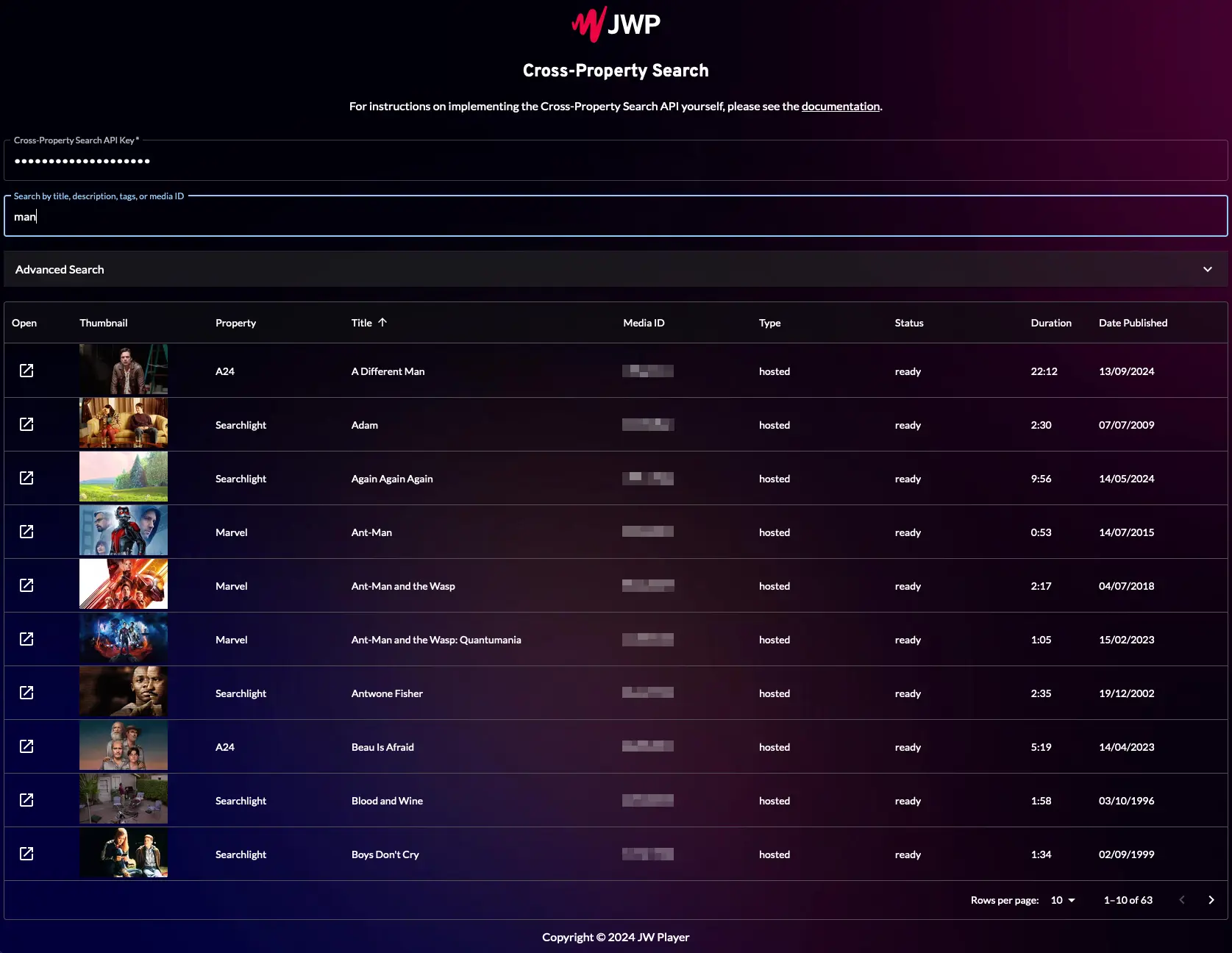
Authentication
Using the front-end requires your Cross-Property Search API key that would have been provided to you by JWP.
The key should be entered in the “Cross Property Search API Key” text field. The page will automatically remember your key for your next visit.
Searching
To search, enter your query in the “Search by title, description, tags, or media ID” field. This will search across your JWP properties for any media that contains your query in the title, description, tags or media ID.
The results will be shown in the table below. To view the media details in the JWP Dashboard, click the open button to the left of the media row.
Sorting
By default, results are sorted by Date Published. You can change the sort field by hovering over the field you want to sort by, and clicking the arrow. Clicking the arrow again will switch the sort direction.
Results can be sorted by Property, Title, Status, Duration or Date Published.
Pagination
By default, 10 results will be shown per page. You can increase this using the “Rows per page” dropdown at the bottom of the results table.
You can navigate between pages using the arrows in the bottom right of the results table.
Advanced search
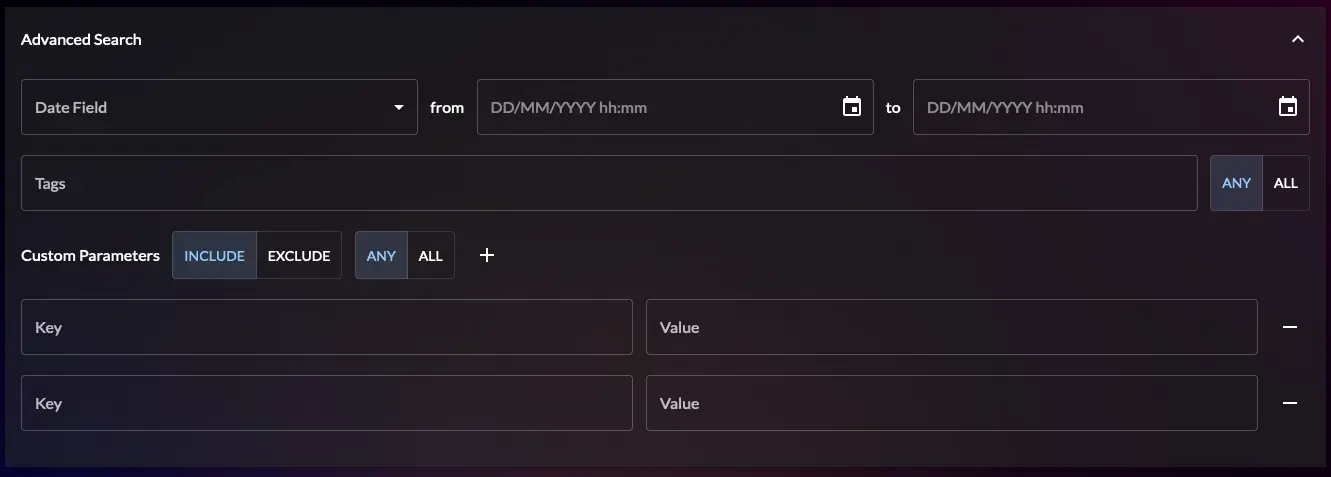
Using the advanced search options, it is possible to filter the results by date, tags, and custom parameters.
Date
Using the date filter, you can filter the search results by date created, updated or published.
Select the date field you want to filter by using the “Date Field” dropdown, then enter the date range using the “from” and “to” fields.
To filter by an open date range, you can leave either the “from” or “to” field blank.
Tags
To filter by tags, enter the tags you would like to filter by in the “Tags” field. After each tag, press the Enter key to add the tag to the filter.
To change the filter mode, use the toggle to the right of the tags field. This allows you to switch between requiring the media has all of the tags you have entered, or any of the tags you have entered.
Custom Parameters
To add a custom parameter filter, click the + button next to “Custom Parameters”, and then fill in the key and value. You can add as many custom parameter filters as you like.
Using the toggles, you can switch between excluding media with the custom parameters you’ve entered, or including media with the custom parameters you have entered, as well as switch between requiring the media has all the custom parameters you have entered, or any of the custom parameters you have entered.